
Complete visual guide

One family portrait,even when everyone is apart.

The host creates one room, sends one shared event link, and waits while the Virtual Photographer collects the required details. Follow these real product screens from start to finish.

Copy Invite

Copies the room URL so you can paste it into any message.

Share

Opens the device share menu for Messages, email, WhatsApp, and more.

Seven-day event link

Lets each relative register and submit their own details.

Which link should I send? Send the same event invitation to the family group. Each relative registers independently, and the host's studio receives completed uploads automatically. The host can extend the invitation by seven days or close it at any time.
STEP 01

Start a family studio room

On the home page, select Start Your Family Studio Room and choose how many people should appear in the portrait. The browser that creates the room becomes the host.

123 Cheese Studio home page with the Start Your Family Studio Room button
STEP 02

Copy or share the room invitation

The room card gives you three clear choices. Copy Invite puts the URL on your clipboard. Share opens your phone or computer sharing menu. Enter Studio as Host takes only you into the management screen.

Family studio room card with Copy Invite, Share, and Enter Studio as Host buttons
STEP 03

Choose the family portrait theme

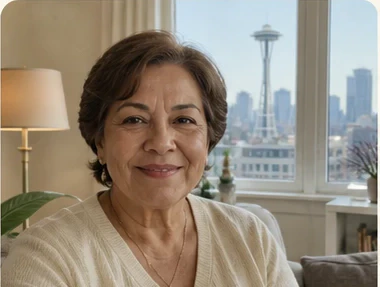
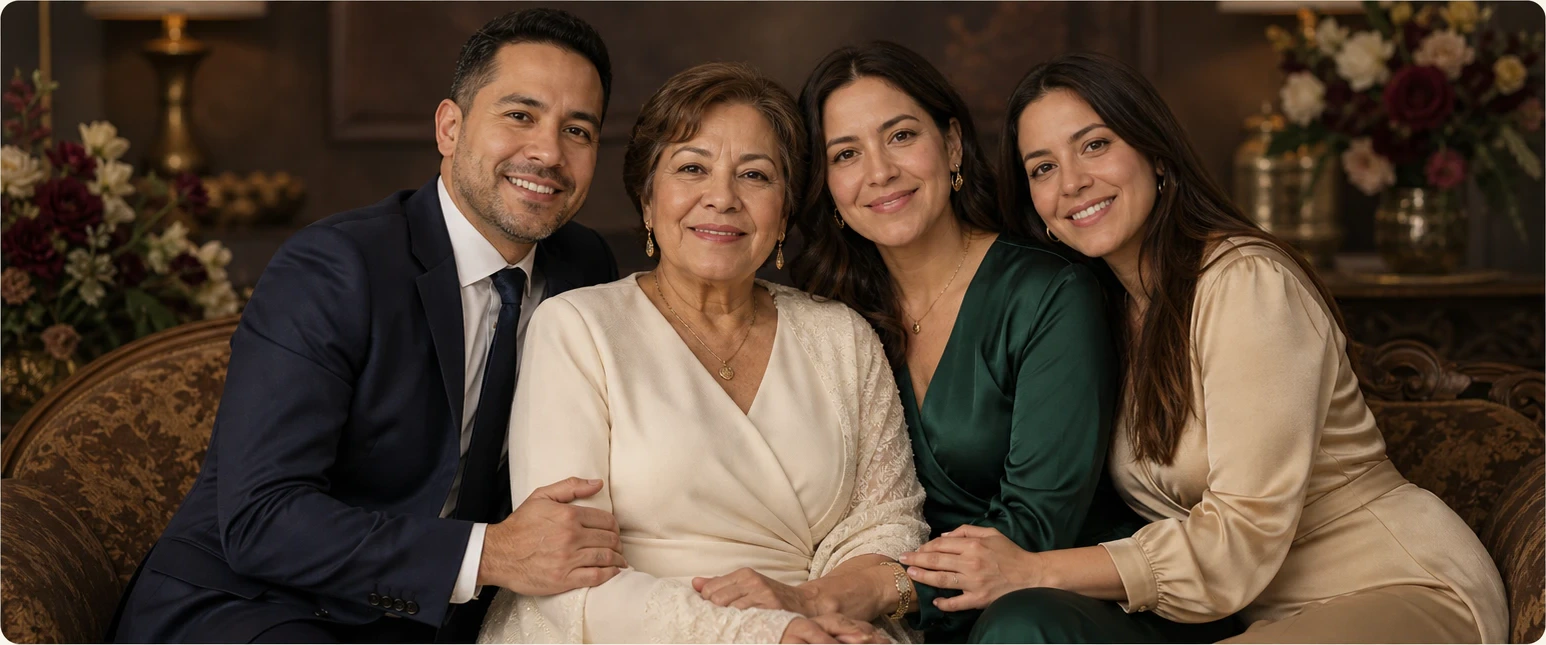
Inside the studio, choose one of the six visual themes. Every card shows an example family portrait so everyone can understand the wardrobe, setting, and overall mood before uploading anything.

Family studio theme selection cards with example family portraits
STEP 04

Family members join the shared invitation

Send the same seven-day event invitation to the family group. Each person opens it, reads the host’s occasion and message, then enters their own name, role, and portrait presentation.

Personal upload invitation with Copy Link and Send to Family buttons
STEP 05

Each person submits only three essentials

The invited family member opens the link on any phone. They add one clear face photo, one complete full-body photo, and confirm their height. No account setup is required for this test flow.

Mobile family upload page for face photo, full-body photo, and height

Before the portrait is released

OpenAI creates the portrait and Gemini independently checks person count, identity, portrait presentation, and requested gaze. An uncertain result is withheld instead of being shown.

Test checkout only

During payment testing, Stripe and PayPal must remain in sandbox mode. Test cards or sandbox accounts are used, so no real payment should be captured.

Ready to bring everyone together?

Start at the home page